Saturday, 8 June 2013

Samsung Galaxy S3 on Jelly Bean


Flashing the Vralec Bootchain

The VRALEC bootchain is required prior to installing any custom recovery to your phone. So follow the following steps to install it:
  • You must have already installed all the USB drivers for your phone.
  • Boot the phone into ODIN download mode.
    In order to do so, power off your phone. Then press the ‘volume down’ and ‘home’ buttons and while keeping them pressed power on your phone. As soon as you see a warning screen, release the keys and then press the ‘volume up’ button and you will be in the ODIN download mode.
  • Now click the PDA button in ODIN and select the VRALEC.bootchain.tar file you downloaded earlier.
  • Click the start button and you will be done.

Installing Custom Recovery

  • Now again boot into the ODIN download mode as you did earlier.
  • In the PDA section, browse to the respective file that you downloaded earlier for the custom recovery of your choice, either ClockworkMOD or TWRP Recovery.
  • Remember to uncheck the ‘auto reboot’ option. This is quite an important step.
  • Now click start and wait till the process finishes.
  • Once done, your screen will go black. Now immediately press the ‘power up’ and ‘home’ buttons. You need to be quick with this.

Unrooting and/or Unlocking Bootloader

  • Now that you have entered the recovery mode of your phone, you will see the recovery menu.
  • If not, reboot into the recovery mode.
  • Go to the ‘install ZIP from SD card’ option.
  • In the next menu click the ‘select ZIP’ option.
  • Now choose the ZIP that you need to install depending on whether you just need to root or unlock bootloader or both on your phone. You had downloaded the respective ZIP in the beginning of this process.
  • Install the ZIP and you will be done.

Restoring the Bootloader

  • This step is optional and will be required if you need to go to the original settings and partitions of your phone as it was earlier.
  • Boot your phone into ODIN download mode.
  • Flash the VRBLK3 bootchain as you did earlier with VRALEC bootchain.
  • After finishing the flashing process, your phone will be back to normal.
So, now you can root verizon samsung galaxy S3 on jelly bean that too very easily.


How to Upgrade Sony Ericsson Xperia U to Ice Cream Sandwich


Installing the ICS Firmware on Sony Xperia U ST25a or ST25i

  • First of all you need to extract the firmware files that you have already downloaded. You would have noticed that the files are in a ZIP format. Extract them until you get a file with .ftf extension.
  • Install the flashtool on your computer.
  • Now browse to the directory of your computer to which the flashtool has been installed. Generally it is C:\Flashtool\firmwares. And then copy the firmware file that you have extracted in the previous step there.
  • Now execute the flashtool utility as an administrator so that you have full access and permissions for its operations.
  • If there are any Sony update services or Sony PC companion services running, you need to terminate them all. You may notice them in the notification area if they are running and exit them before you start the procedure.
  • In the flashtool, you will notice a thunder icon as the one shown in the image below. Click it to begin the process.
1w
  • Soon you will be presented with a popup window that will ask you for the desired mode. In that window select the ‘Flash Mode’ by ticking it.
  • Now press OK.
  • Now you will see a firmware selection window in front of you. You need to browse to the directory where you had saved the firmware earlier, in case you had not saved in the flashtool firmware directory. Once you choose the desired firmware file, click OK.
  • Now you need to choose the correct file from the options that you see next as the one shown in the image below:
2w
  • If you are using a ST25a, you need not modify any of the other options.
  • But if you are using the ST25i, you need to tick the ‘exclude baseband’ option as shown in  the following image:
3w
  • In order to begin the installation process, click the OK button that you see at the bottom of the window as shown in the following image:
4w
  • If your phone is already connected to your PC, you need to disconnect it before you go further with the process.After you have disconnected the phone, switch it off.
  • Now, wait for almost 30 seconds and then connect your phone to the PC while it is still switched off. While you connect the phone to PC, you are supposed to hold the volume down button.
  • Though you will see a notification window telling you to disconnect your phone from your PC and to press and hold the back button, but you need to ignore it. So do not pay heed to this window and it will automatically disappear.
  • Now the flash process will commence and you can see the progress in the progress bar on the bottom of flashtool window.
  • During the process, do not use your phone or interrupt in between to avoid any damages or in the worst cases bricking your phone.
  • Once the flashing is complete, turn your phone ON.
  • It might take some time for the first boot and voila! You are now running ICS on your phone.

What Is WiFi?


A wireless network uses radio waves, just like cell phones, televisions and radios do. In fact, communication across a wireless network is a lot like two-way radio communication. Here's what happens:
  1. A computer's wireless adapter translates data into a radio signal and transmits it using an antenna.
  2. A wireless router receives the signal and decodes it. The router sends the information to the Internet using a physical, wired Ethernet connection.
The process also works in reverse, with the router receiving information from the Internet, translating it into a radio signal and sending it to the computer's wireless adapter.
The radios used for WiFi communication are very similar to the radios used for walkie-talkies, cell phones and other devices. They can transmit and receive radio waves, and they can convert 1s and 0s into radio waves and convert the radio waves back into 1s and 0s. But WiFi radios have a few notable differences from other radios:


SUN   RAY   ARE    HELPFUL


We all need some sun exposure; it's our primary source of vitamin D, which helps us absorb calcium for stronger, healthier bones. But it doesn't take much time in the sun for most people to get the vitamin D they need, and repeated unprotected exposure to the sun's ultraviolet rays can cause skin damage, eye damage, immune system suppression, and skin cancer. Even people in their twenties can develop skin cancer.

Most kids rack up a lot of their lifetime sun exposure before age 18, so it's important that parents teach their children how to enjoy fun in the sun safely. With the right precautions, you can greatly reduce your child's chance of developing skin cancer.

Facts About Sun Exposure

The sun radiates light to the earth, and part of that light consists of invisible ultraviolet (UV) rays. When these rays reach the skin, they cause tanning, burning, and other skin damage.
Sunlight contains three types of ultraviolet rays: UVA, UVB, and UVC.
  1. UVA rays cause skin aging and wrinkling and contribute to skin cancer, such as melanoma. Because UVA rays pass effortlessly through the ozone layer (the protective layer of atmosphere, or shield, surrounding the earth), they make up the majority of our sun exposure. Beware of tanning beds because they use UVA rays as well as UVB rays. A UVA tan does not help protect the skin from further sun damage; it merely produces color and a false sense of protection from the sun.
  2. UVB rays are also dangerous, causing sunburns, cataracts (clouding of the eye lens), and effects on the immune system. They also contribute to skin cancer. Melanoma, the most dangerous form of skin cancer, is thought to be associated with severe UVB sunburns that occur before the age of 20. Most UVB rays are absorbed by the ozone layer, but enough of these rays pass through to cause serious damage.
  3. UVC rays are the most dangerous, but fortunately, these rays are blocked by the ozone layer and don't reach the earth.

Drinking too much water 'can be bad for your health': Benefits


It is said to help us prevent kidney damage, lose weight and increase concentration levels.
But experts now warn that drinking eight glasses of water a day is not good for you after all – and could be harmful.

Drinking excessive amounts can also lead to loss of sleep as people have to get up in the night to go to the toilet, and other studies show it can even cause kidney damage, instead of preventing it.

Tuesday, 4 June 2013

Cool, Free Top 15 Android Apps

Android is the world’s most popular mobile platform, which currently powers  millions of smart phones and tablet computers in the world. Google Play is the digital application distribution platform for Android, which is developed and maintained by Google.


There are more than 600,000 apps and games are available on Google Play. Google play was formerly knows as Android Market. In this post, I want to introduce to you some great, free Android Apps on Google Play, apart from Skype, Facebook, Angry Birds, Opera Mini web browser or Talking Tom which are already very popular and you might have used.

1. WhatsApp Messenger:

An alternative to SMS, WhatsApp Messenger is a smartphone messenger which uses your 3G or WiFi to send and receive messages, pictures, audio notes, and video messages. For the first year it is free, then it costs you $0.99 per year.

2. MX Player:

MX Player is a popular media player to watch movies on Android devices. If you want to play files of any kind on your smart phone, you will like this app. It is also very comfortable to use, provides volume control by swiping.

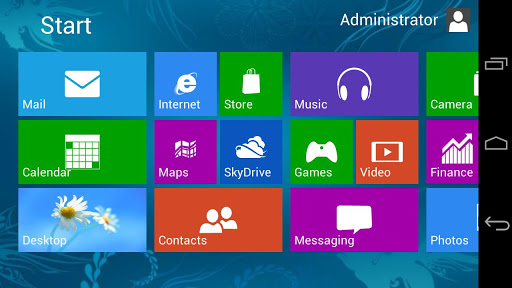
3. Fake Windows 8:

Using Fake Windows, you can convert your Android device into Windows 8!
Try it, if you want to experience a new way to use a smartphone with the Metro style.

4. Face Changer:

Face changer lets you easily change faces in photos. You can easily create funny pictures and caricatures, and also share them to internet/social media.
It has tools like smudge, draw, zoom, object.

5. Balloon, Bow & Arrow:

Recently this game has been on No. 1 in Top Free Games category on Google Play. You are given a bow and 25 arrows and have to shoot as many balloons as you can. This is a fun game having beautiful graphics, animation, realistic sound effects and physics effects.

 6. Viber – Free Calls and Text:

Similar to Skype, this app is becoming popular for making free calls and messaging. This app is simple to use, has good sound quality and it is ad free.

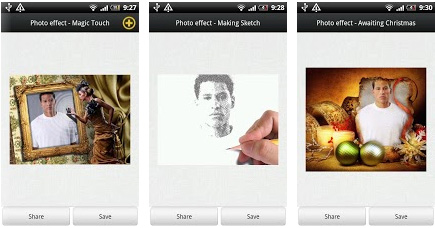
7. 200+ Photo Effects:

This app automatically identifies the face in the photo and lets you and create funny face photo montages and add different photo effects.

8. AVG Antivirus Free:

You must have an antivirus to protect your device from harmful viruses, malware, spyware and text messages and helps keep your personal data safe. This is my favorite one.

9. GO Launcher EX:

Extended version of GO Launcher, one of the most popular home application. GO Launcher EX is the most popular Android home launcher replacement app on Google Play. You can customize your homescreen using many features. It provides smooth, fast operation/animations, fancy and plentiful themes, various gadgets. It also has efficient app management function, including sorting, hide app, search, cleaning memory and refresh.

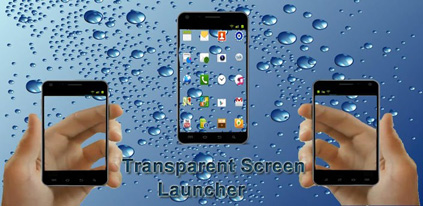
 10. Transparent Screen Launcher:

Transparent Screen Launcher allows you to make the screen transparent using camera. The publisher notes that, by using this app you can safely browse apps on mobile while walking on roads and avoid accident on roads.

Sunday, 2 June 2013

What Is USB?


Today just about every PC comes with Universal Serial Bus, or USB ports. In fact, many computers
 will even have additional USB ports located on the front of the tower, in additional to two standard USB ports at the back. In the late 1990s, a few computer manufacturers started including USB support in their new systems, but today USB has become a standard connection port for many devices such as keyboards, mice, joysticks and digital cameras to name but a few USB-enabled devices. USB is able to support and is supported by a large range of products.

Adding to the appeal of USB is that it is supported at the operating system level, and compared to alternative ports such as parallel or serial ports, USB is very user-friendly. When USB first started appearing in the marketplace, it was (and still is) referred to as a plug-and-play port because of its ease of use. Consumers without a lot of technical or hardware knowledge were able to easily connect USB devices to their computer. You no longer needed to turn the computer off to install the devices either. You simply plug them in and go. USB devices can also be used across multiple platforms. USB works on Windows and Mac, plus can be used with other operating systems, such as Linux, for example, with a reliable degree of success.